Subscribe for FREE daily Updates.

0 Search Any Files Uploaded On The Net Easily

If you are searching for the sites which allow you to download free movies, videos, mp3, TV, series, games and text files, then General-Files is the great website. You can search for all these stuffs since it is a downloadable search engine as well. General-Files is one of the popular file sharing site.

Its major feature is its search engines which allow you to search for the required files online. By using this site, you can search for the files containing in other file sharing site like RapidShare, 4Shared, Fileserve, etc as well. Its search features is more advanced where you can search files by filtering file size and types.

You can increase your working efficiency by using General-Files. As other site, it allow you to upload your any files and share it to your friends.

You can also register new account at General-Files and start sharing videos, mp3, TV, series, games and text files freely. Within 2 steps that is search and download you can enjoy this site. With the motto "Files for Everyone" its going on very well and being popular day by day. Also, you can download videos for free!

This site is very helpful since you can search any file uploaded by using the popular file uploading sites on the net. In short we can say it is the general search engine for any files upload on the net.

0 10 Excellent Tools for Testing Your Site on Mobile Devices


With the ever-increasing sales of smartphones and the burgeoning tablet market starting to skyrocket, coupled with far greater access to more robust mobile data networks, the internet is now being accessed by our users in a multitude of new ways.
The huge range of mobile devices used to browse the web now means you really have to consider making your site mobile-compatible.
But how do you go about it? Testing your site on mobile devices can be time-consuming and expensive due to the vast number of different mobile devices.
Fear not, because there are some handy tools available at your disposal for making sure that your website renders appropriately on the Mobile Web. This article shares and discusses 10 such tools.

1. iPhoney

An excellent free iPhone tester, iPhoney isn’t exactly an emulator, but allows developers to create 320x480px websites for use on the iPhone. It allows you to test images and code in a pixel-perfect Apple-Safari-powered environment, with all the normal features including Portrait and Landscape modes, fullscreen, zoom and plugins.

2. W3C mobileOK Checker

This checker is a web-based automated validation tool that checks to see how mobile-device-friendly your website is. The tests are checked against the W3C mobileOK Basic Tests specification developed by W3C.

3. iPad Peek


This handy web-based tool allows you to see how your websites look when rendered on the iPad. It’s recommended that you use a WebKit-based browser such as Apple Safari or Google Chrome to have as accurate a simulation as possible — or at the very least, a CSS3-capable browser that supports transformation properties (like Opera) because it uses them to render the page in Portrait mode.

4. Modify Headers Add-on for Firefox

There are add-ons for Firefox that can manipulate the data sent to servers to make it seem as if the user agent is browsing on a mobile device, even when they’re not. To do this, you need an add-on called Modify Headers (for Firefox).
Once you have downloaded and installed this add-on, the new options, Tools > Default User Agent and Tools > Modify Headers should appear in your browser.
To emulate browsing on a mobile device, you need to find the User Agent Profile (UAProf) value of your mobile device, which can be found with a quick search on Google for "user agent" followed by the model of your phone (e.g. see Google results for "user agent ipad"). Alternatively, check out this list of UAProf values.
Once you have located the UA Profile value for the phone you want, enter it into the Modify Header dialog box, and bingo, you will see how it’s like to browse from that device.
For Google Chrome, you can try out the User-Agent Switcher extension.
For a browser-independent desktop application that works on virtually any internet-enabled app, try out Fiddler Web Debugger that lets you modify HTTP requests, among other things.

5. Adobe Device Central CS5

As part of the latest Adobe Creative Suite, Device Central emulates the operation of mobile devices on your desktop allowing you to test HTML and Flash from the comfort of your desktop.
To open a page or site, select Device Profiles > Browse Devices, then right-click and choose Add To Test Devices. Now that you’ve added a device, simply go to File > Open (for local testing) or File > Open URL (for remote testing).
Though far from being free, if you’re a professional designer or developer, you’ll have a high chance of being able to access Adobe’s creative suite of applications.

6. Google Mobilizer

Google Mobilizer is a simple web tool that lets you input a web page address and then makes the page mobile-web-friendly by trimming the content down to its bare essentials. This is an excellent tool for seeing where you can make performance optimizations on your site.


7. Gomez

Gomez mobile readiness test gives you a score between 1 and 5 based on an analysis of over 30 proven mobile web development techniques, ranging from stylesheet use (e.g. media queries) to caching techniques and standards-compliant code. The results are displayed in an easy-to-understand document that offers advice on how to make your site better.
Unfortunately, to be able to test your site, you must enter in a bunch of information including your email address, country, zip code, and phone number.

8. MobiReady

In the same vein as Gomez, MobiReady is another online testing site that allows you to enter a URL so that it can perform a set of evaluations, including Page Test, Markup Test and Site Test of the web page. This is a slightly more detailed version of Gomez above and provides a comprehensive test result page including dotMobi compliance, W3C mobileOk tests, device emulators, detailed error reports, HTTP tests and a code checker.
However, the results aren’t as succinct as Gomez’s results, a disadvantage when it comes to presenting your information to your less technically astute clients/employers.

9. DotMobi Emulator

The dotMobi emulator gives you a live preview of your site from a (fairly small, to be honest) range of different mobile phones. This mobile testing tool is great if you need to test your page on older mobile devices.
What can be annoying to potential users of this tool is that it requires the Java browser plugin for it to work.

10. Opera Mini Simulator

With over 120 million smartphones sold that has Opera pre-installed[1] and an edition available for almost any OS, making sure that your site works on Opera Mini (the mobile version of the Opera web browser) is a good practice to include in your testing workflow.
Thankfully, Opera has obliged us by offering a free web-based emulator for testing and evaluating your web design on a mobile device that uses Opera Mini.
This tool requires the Java browser plugin to function.


0 Google May Be Developing Motion Interface for Android

A patent filing made public last week suggests that Google is working to turn a device's front-facing camera into a motion-input system, allowing consumers to use gestures instead of greasing up the screen with fingerprints. If granted, the company could reportedly take this patent down several avenues, including incorporating the technology into Android itself, saving the tech for Motorola, or hording the patent for use against rivals Apple and Microsoft.

The submission, titled Use camera to augment input for portable electronic device, describes a method of controlling a portable electronic device including an image capturing device. The method comprises of "detecting, via the image capturing device, motions of an object over the image capturing device; determining a type of the detected motions using timing information related to the detected motions, the timing information comprising duration of at least one of the detected motions; and controlling the portable electronic device based on the determined motion type."

The patent indicates that human fingers are making gestures by "single tapping, double tapping, hovering, holding and swiping." These gestures could trigger phone calls, allow users to navigate through photos, music and videos, swipe through the internet and more. The proposed system may even incorporate additional hardware like the microphone, the accelerometer, digital compass and other installed features.

"The system detects, through the image capturing device, motions of user finger over the image capturing device," reads the patent application. "The system determines a pattern of the detected motions using timing information related to the detected motions, and controls the portable electronic device based on the determined pattern. The system also receives inputs from other input devices associated with the portable electronic device, and controls the device based on combination of the determined pattern and the received inputs"

Google's system will use a combination of light and timing to determine what gesture and command is being used. The patent covers both physical touch against the device (as in clicking a virtual mouse button) and movement within the camera's range of sight as long as there is enough contrast in the captured frames to determine movement (meaning gesturing while standing in a dark closet is likely to fail).

"For example, the system may perform detecting and recognizing of the motion events based on illumination levels of images taken by the camera and timing information with regard to the motion events," the patents read. "By calculating the illumination level of an image received from the camera and comparing the illumination level with a predetermined threshold value, the system may determine that a release or a touch event has occurred. If the illumination level falls under the threshold value, an event of touching the camera has occurred."

While the patent uses the word "finger" throughout the filing, it also uses "object" when describing a method of input, possibly indicating that Google has more in mind than simply using finger-based motion input controls on tablets and smartphones. The patent seemingly backs up rumors that Google is currently working on a wearable augmented-reality computer -- aka a cool set of specs -- that features a front-facing camera for tracking hand and finger movements.

Based on the patent filing, it seems as though Google is taking advantage of front-facing cameras and building motion-sensing controls into Android. Google may also branch out and make this a standard feature in Android altogether, offering a native motion-sensing client for Google TV manufacturers. There's also that rumored entertainment system that may also take advantage of gestures as well.


0 Windows on the iPad, and Speedy

your ipad can't play flash videos on the web. Mine can. Your copy windows needs constant updating and patching and protection against viruses and spyware. Mine is always clean and always up-to-date.

No, i am not some kind smug techno-elitist; you can have all of that, too.
All you have to do is sign up for a radical ipad service called OnLive Desktop Plus.

Its a tiny app - about 5 megabytes. What you open it, you will see a Standard Windows 7 desktop, right there on your ipad. The full, latest version of word, excel , powerpoint, Internet Explorer and Adobe Reader are set ur and ready to use on installation, no serial numbers, no popup balloons nagging you to update this os that. It may be tin least annoying version os Windows you havoc ever used.

        That's pretty impressive but not as impressive as what's going on behind the scenes. The PC that's driving your ipad windows experience is sign, in fact, a farm of computers at one of three data centers thousands of miles away. every time you tap the screen, scroll a list or  type on the keyboard screen, you're sending signals to those distant computers. The screen image is blasted black to your ipad with astonishing little lag.

      There's insane amount of technology being this stunt...10 year in the making, according to the company's  founder.OnLive desktop builds on company's original business, a service that lets hands play high horsepower video games on Macs os low powered windows computers like netbooks.

   The free version of tin OnLive desktop service arrived in January. It gives your word, excel, power point, a few basic windows apps and ready 2 gigabytes of storage.

      Plenty of apps give you stripped down version of office on the ipad. But OnLive desktop gives you the complete widows office suite . In word, you can do fancy stuff like tracking change com high end typography. In power point, you can major slide prays that the ipad projects with all of the cross fades, zooms and animations intact.

       Thank to Microsoft's own touch pack add-on , all plenty of this works with touch screen gestures. You can pitch and spread two fingers to zoom in and zoom out office documents. You low use widows impressive handwriting recognition to enter text. You can flick to scroll through a list.

         Instead of clicking tin torn on things, you bay simply tap, although a styles works better that a finger tip; many of the windows controls are too tiny for a finger to tap precisely.

       OnLive desktop is seamless and fairly amazing. And fast; on what other pc eyes word open in one second?


0 WORKING WITH OPERATING SYSTEM


WORKING WITH OPERATING SYSTEM


We all know what a “computer” is, it’s one of those very useful electronic devices that perform a variety of operations in accordance with a set of instructions called program. By now all mid-aged teenagers might know that a computer, in fact all electronic devices work on a simple cycle called I-P-O cycle. Also it’s crystal clear that I/O would obviously stand for Input and Output. Now what is P? P stands for “processing”. Processing actually is what the computer does and displays the output in response of the input. Being a computer science engineer we must know that, whatever this system does is actually what generally we humans do. So then how does it make a difference? The difference is that the computer works on a set of rules and these rules are called protocols. It has some syntax i.e. conventions which it is bound to follow. Since the processor is responsible for processing, it must be faster than what our human brain is capable of doing and, it’s always faster.

Thus if computer processes just in the same way we humans solve a problem then, it should practically use the same formulas we work on, then what is going to make this system run on the same formulas? Well if we can control the flow of signal as per our wish and compel the system to do what we instruct then we can get the desired output, isn’t it? But that too doesn’t seem pleasing as it’s not as easy as it seems to appear. To compel it to do something we must have certain rules which it should follow. These rules are nothing but “software”.

Software, another very complex but important term in computing that is to be understood in depth. Software represents the set of programs that governs the operation of a computer system and make the hardware run. Technically software is a man-made program that can control the flow of information depending on what we have coded it for. It’s just like an object designed for particular work (Pencil’s work is to write where Eraser’s work is to erase).

Software can be subdivided into two basic types:
• System Software.
• Application Software.


System Software:
As we observe the word “system” appears here so it obviously has got something to do with the controlling of system. System software primarily focuses on managing the hardware run properly, flow of information in and out and governs the working of Application software.
It can be further divided into two types, viz. Operating System and Language Processors.
Ex. of Operating system: Windows, Macintosh, UNIX, Linux, etc.
Ex. of Language processors: Assembler, Interpreter, Compiler.


Application Software:
Set of programs necessary to carry out operations of specific application. These are the programs that are written as well as used by the humans. These programs are written to fulfill the personal requirements of human like an application for playing games. Does neither good nor any bad to humankind or machines, just for our entertainment we have made the software. Similarly there are several applications.
Ex. of the Applications: AutoCAD, MS-Word, etc.


OPERATING SYSTEM:
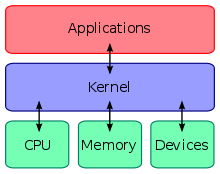
An operating system can be defined as a program which acts as an interface between a user and the hardware (i.e. all computer resources).

A simple way to understand the operating system is:


The above shown sketch depicts the interaction starting from User till the Hardware/C.P.U.

To understand the Operating system (here onwards OS), we compare it with real world. Our duty is to study and excel. For that we go to different institutions. Now we are nothing but the ‘End User’. Teachers act as application software, each expert in their field, conveying us the knowledge. Here the Principal has no work practically i.e. they don’t consult us directly but, they still control the institution and its proper functioning. Here hardware is the classrooms, benches and other tools we use in school. The Principal who they act as OS over here has to maintain proper conditioning of the hardware, functioning of application software and also control the interaction between the three.

In the same way OS acts as a guide, one that has been designed such that it maintains a correct balance between user and applications used by them, and the proper flow of data between the applications and hardware.


Now as I have mentioned that an OS looks on both the hardware and the user, the OS must have to separate units to do so. Thus OS has two parts: Kernel and the Shell.

Kernel is responsible for interacting with the hardware and the Shell is responsible for interacting with the user.


Types of OS:

Real-time
A real-time operating system is a multitasking operating system that aims at executing real-time applications. Real-time operating systems often use specialized scheduling algorithms so that they can achieve a deterministic nature of behavior. The main objective of real-time operating systems is their quick and predictable response to events. They have an event-driven or time-sharing design and often aspects of both. An event-driven system switches between tasks based on their priorities or external events while time-sharing operating systems switch tasks based on clock interrupts.

Multi-user vs. Single-user
A multi-user operating system allows multiple users to access a computer system concurrently. Time-sharing system can be classified as multi-user systems as they enable a multiple user access to a computer through the sharing of time. Single-user operating systems, as opposed to a multi-user operating system, are usable by a single user at a time. Being able to have multiple accounts on a Windows operating system does not make it a multi-user system. Rather, only the network administrator is the real user. But for a Unix-like operating system, it is possible for two users to login at a time and this capability of the OS makes it a multi-user operating system.

Multi-tasking vs. Single-tasking
When only a single program is allowed to run at a time, the system is grouped under a single-tasking system. However, when the operating system allows the execution of multiple tasks at one time, it is classified as a multi-tasking operating system. Multi-tasking can be of two types: pre-emptive or co-operative. In pre-emptive multitasking, the operating system slices the CPU time and dedicates one slot to each of the programs. Unix-like operating systems such as Solaris and Linux support pre-emptive multitasking, as does AmigaOS. Cooperative multitasking is achieved by relying on each process to give time to the other processes in a defined manner. MS Windows prior to Windows 2000 and Mac OS prior to OS X used to support cooperative multitasking.

Distributed
A distributed operating system manages a group of independent computers and makes them appear to be a single computer. The development of networked computers that could be linked and communicate with each other gave rise to distributed computing. Distributed computations are carried out on more than one machine. When computers in a group work in cooperation, they make a distributed system.

Embedded
Embedded operating systems are designed to be used in embedded computer systems. They are designed to operate on small machines like PDA’s with less autonomy. They are able to operate with a limited number of resources. They are very compact and extremely efficient by design. Windows CE and Minix 3 are some examples of embedded operating systems.


Kernel

With the aid of the firmware and device drivers, the kernel provides the most basic level of control over all of the computer's hardware devices. It manages memory access for programs in the RAM, it determines which programs get access to which hardware resources, it sets up or resets the CPU's operating states for optimal operation at all times, and it organizes the data for long-term non-volatile storage with file systems on such media as disks, tapes, flash memory, etc.


User interface

Every computer that is to be operated by an individual requires a user interface. The user interface is not actually a part of the operating system—it generally runs in a separate program usually referred to as a shell, but is essential if human interaction is to be supported. The user interface requests services from the operating system that will acquire data from input hardware devices, such as a keyboard, mouse or credit card reader, and requests operating system services to display prompts, status messages and such on output hardware devices, such as a video monitor or printer. The two most common forms of a user interface have historically been the command-line interface, where computer commands are typed out line-by-line, and the graphical user interface, where a visual environment is present.

Most of the OS today run in Graphical User Interface or commonly called GUI.

0 Know why System Hangs - from wikipedia

About

In computing, a hang or freeze occurs when either a single computer program or the whole system ceases to respond to inputs. In the most commonly encountered scenario, a workstation with a graphical user interface, entire windows belonging to the frozen program become static. Though the mouse cursor still moves on the screen, neither typing on the keyboard nor clicking the mouse produces any effect on the program's window. The mouse cursor may also be stuck in a form indicating that it is waiting for some operation to complete, such as an hourglass or a spinning wait cursor. Many modern operating systems provide the user with a means to terminate a hung program without rebooting or logging out. In more severe hangs affecting the whole system, no window belonging to any program will respond to keyboard or mouse input, and often the mouse cursor will freeze in place on the screen. Almost always, the only way to recover from a system freeze is to reboot the machine, usually by power cycling with an on/off or reset button. In the Windows 7 and Windows Vista operating systems, hangs almost always precedes a Blue Screen of Death or are a sign to the user that one is on its way. On Windows systems, if clicked on, a hanging program will gain "Not Responding" in parentheses on its top bar.
A hang differs from a crash, in which a program exits abnormally or the operating system shuts down.
Hangs are not limited to client personal computers with a graphical user interface, as in the example above. Servers can hang as well. In those cases, the server ceases to respond to requests. These sorts of hangs are typically addressed by a solution far more complex than an on/off or reset button.
Pre-emptive multitasking operating systems, such as Microsoft Windows 2000/XP/Vista/7, Apple Computer's Mac OS X and Linux hang less often as the multi-tasking system is not affected by non-terminating loops and further does not require tasks to yield control to the operating system. If a task does hang, the scheduler may switch to another group of interdependent tasks so that all processes will not hang.

Causes

Hardware can cause a computer to hang, either because it is intermittent or because it is mismatched with other hardware in the computer (this can occur when one makes an upgrade). Hardware can also become defective over time due to dirt or heat damage.
A hang can also occur due to the fact that the programmer has incorrect termination conditions for a loop, or, in a co-operative multitasking operating system, forgetting to yield to other tasks. Said differently, many software-related hangs are caused by threads waiting for an event to occur which will never occur. This is also known as an infinite loop.
Another cause of hangs is a race condition in communication between processes. One process may send a signal to a second process then stop execution until it receives a response. If the second process is busy the signal will be forced to wait until the process can get to it. However, if the second process was busy sending a signal to the first process then both processes would wait forever for the other to respond to signals and never see the other’s signal (this event is known as a deadlock). If the processes are uninterruptible they will hang and have to be shut down. If at least one of the processes is a critical kernel process the whole system may hang and have to be restarted.
A computer may seem to hang when in fact it is simply processing very slowly. This can be caused by too many programs running at once, not enough memory (RAM), or memory fragmentation, slow hardware access (especially to remote devices), slow system APIs, etc. It can also be caused by hidden programs which were installed surreptitiously, such as spyware.

Solutions

In many cases programs may appear to be hung, but are making slow progress, and waiting a few minutes will allow the task to complete.
Usually, in systems with a modern operating system, the user is able to terminate the programs running (for instance, with the kill command, or through the "end task" button on the task list in recent versions of Microsoft Windows), and, if they wish, restart it in the hope that the anomalous condition that caused the hang does not recur. Older systems, such as those using MS-DOS or Windows 3.1x, often needed to be completely restarted in the event of a hang.
A watchdog timer can reboot the computer in the event of a hang (this is commonly used in embedded devices).

0 What is Phishing ?


Phishing is an attempt to criminally and fraudulently acquire sensitive information, such as usernames, passwords and credit card details, by appearing as a trustworthy entity in an electronic communication. eBay, PayPal and other online banks are common targets.
Phishing is typically carried out by email or instant messaging and often directs users to enter details at a website, although phone contact has also been used.
Phishing is an example of social engineering techniques used to fool users. Attempts to deal with the growing number of reported phishing incidents include legislation, user training, public awareness, and technical measures.
Recent phishing attempts have targeted the customers of banks and online payment services. Social networking sites such as Orkut are also a target of phishing.
Spoofed/Fraudulent e-mails are the most widely used tools to carry out the phishing attack. In most cases we get a fake e-mail that appears to have come from a Trusted Website . Here the hacker may request us to verify username & password by replaying to a given email address.
 
TECHNIQUES BEHIND PHISHING ATTACK
 
1. Link Manipulation
Most methods of phishing use some form of technical deception designed to make a link in an email appear to belong to some trusted organization or spoofed organization. Misspelled URLs or the use of subdomains are common tricks used by phishers, such as this example URL
www.micosoft.com
www.mircosoft.com
www.verify-microsoft.com
instead of www.microsoft.com
 
2. Filter Evasion
Phishers have used images instead of text to make it harder for anti-phishing filters to detect text commonly used in phishing emails. This is the reason Gmail or Yahoo will disable the images by default for incoming mails.
 
How does a phishing attack/scam look like?
As scam artists become more sophisticated, so do their phishing e-mail messages and pop-up windows. They often include official-looking logos from real organizations and other identifying information taken directly from legitimate Web sites. Here is an example of how the phishing scam email looks like

Example of a phishing e-mail message, including a deceptive URL address linking to a scam Web site.
To make these phishing e-mail messages look even more legitimate, the scam artists may place a link in them that appears to go to the legitimate Web site (1), but it actually takes you to a phishing site (2) or possibly a pop-up window that looks exactly like the official site.
These copycat sites are also called “spoofed” Web sites. Once you’re at one of these spoofed sites, you may send personal information to the hackers.
 
How to identify a fraudulent e-mail?
Here are a few phrases to look for if you think an e-mail message is a phishing scam.
“Verify your account.”
Legitimate sites will never ask you to send passwords, login names, Social Security numbers, or any other personal information through e-mail.
“If you don’t respond within 48 hours, your account will be closed.”
These messages convey a sense of urgency so that you’ll respond immediately without thinking.
“Dear Valued Customer.”
Phishing e-mail messages are usually sent out in bulk andoften do not contain your first or last name.
“Click the link below to gain access to your account.”
HTML-formatted messages can contain links or forms that you can fill out just as you’d fill out a form on a Web site. The links that you are urged to click may contain all or part of a real company’s name and are usually “masked,” meaning that the link you see does not take you to that address but somewhere different, usually a scam Web site.
Notice in the following example that resting the mouse pointer on the link reveals the real Web address, as shown in the box with the yellow background. The string of cryptic numbers looks nothing like the company’s Web address, which is a suspicious sign.
So the Bottom line to defend from phishing attack is
1. Never assume that an email is valid based on the sender’s email address.
2. A trusted bank/organization such as paypal will never ask you for your full name and password in a PayPal email.
3. An email from trusted organization will never contain attachments or software.
4. Clicking on a link in an email is the most insecure way to get to your account.


0 Mobile Computing: The Story Of G's

THE STORY OF G's
Computing is defined as the use of computers or any such device which works on some program or set of programs. Now as we had already started a discussion on Cloud Computing, these are the techniques on which this computing implicated.

Present day, we would have come across these terms like- GSM, GPRS, CDMA, TDMA, EDGE, 3G, 4G, etc. Now being the “End-User”, we hardly try to know what they are, nor bother to know how these things differ. What we bother about, is that how to use them.

Now where’s the fun in watching a movie when you can’t even remember a scene or a punch dialogue. The same applies in everything we do. Thus, my motive from writing and spreading this article is that we try to know the slightest of details about the various “G’s”.

Now going way back to the past, when inventions of devices like radio, TV, Telephone, W-Phone (Wireless Telephones) were at its work. Now it’s not a joke to convert one form of energy into other, it takes great understanding. Thus, many inventions were combined to achieve what we understand as Wireless communication. The concepts used were the idea behind working of radio and that of a telephone. With this they came to know that sound energy captured from one end can be converted to electrical signals with help of magnets and routed to a desired location in the form of waves through a transmitter. Also it can be received at the other end by a receiver and converted back to electrical coding which can be further converted to sound. All this was possible because of the common factor “frequency” between electricity, magnetism and sound. Now the factor of differentiating signals from one device to other was an issue i.e.: making a device unique. We all are familiar with the quantum theory, and various electromagnetism phenomenons. Now this helped us in relating various factors like speed of light, frequency of signal, bandwidth, wavelength of signal, amplitude of signal etc. Then, a particular electrical coding was assigned to each device which differentiated them from each other.

That was a bit of history of how things began. Now we head straight away to what is this “G”. ‘G’, in computing stands for “Generation”.

0G:
It all began with zero-generation mobile systems called the Mobile Radio Telephone System (MRTS).


The image shown above is a MRTS based device, a predecessor of the modern telephone. In MRT System the technologies used were as follows:-
PTT: Push to Talk.
MTS: Mobile Telephone System.
IMTS: Improved Mobile Telephone System.
AMTS: Advanced Mobile Telephone System.
Each of them differed in frequency range i.e.: kept increasing from one technology to other. This MRTS/ 0G, system of communication started as early in 1940’s and ended up by mid 80’s.

1G:
During early 80’s researches on the first generation (1G), communication systems had been started up. This was surely the best invention in field of communication technology. Instead of converting a single frequency into electrical signal a packet of data was converted into a particular signal and it was analog in nature. Thus, 1G speed varied between that of a 28k modem (28kbit/s) and 56k modem (56kbit/s), meaning actual download speeds of 2.8KBytes/s to 5.6KBytes/s.

2G:
With the beginning of 1G marked the evolution of present day Mobile Cellular Systems. 2G, or the Second Generation system works on a GSM standard. Now GSM stands for Global System for Mobile communication. This is based on TDMA i.e.: Time Division Multiple Access. The only difference between 1G and 2G is the signals were analog then and digital in the later.
TDMA works by dividing a radio frequency into time slots and then allocating slots to multiple calls. In this way, a single frequency can support multiple, simultaneous data channels.
GSM uses a narrowband TDMA, which allows eight simultaneous calls on the same radio frequency.
The other standard for 2G system is CDMA or Code Division Multiple Access. This uses a spread- spectrum technique where data is sent in small pieces over a number of discrete frequencies available for use. Each user’s signal is spread over the entire bandwidth by unique spreading code. At the receiver end, the same unique code is used to recover the signal.
Now both of the above techniques i.e. the entire 2G system was built mainly for voice services and slow data transmissions.
Thus there was a need of modification. But the modification though should have been considered as 3G, did not match up to the uplink/downlink speed.

2.5G:
This is nothing but GPRS or General Packet Radio Service. It is used to describe 2G-systems that have implemented a packet-switched domain in addition to the circuit-switched domain. It does not necessarily provide faster services because bundling of timeslots is used for high speed circuit-switched data services (HSCSD) as well. GPRS could provide data rates of 56 kbit/s - 115 kbit/s. It can be used for services such as Wireless Application Protocol (WAP) access, Multimedia Messaging Service (MMS), and for Internet communication services such as email and World Wide Web access

2.75G:
GPRS networks evolved to EDGE networks with the introduction of 8PSK encoding. Enhanced Data rates for GSM Evolution (EDGE), Enhanced GPRS (EGPRS), or IMT Single Carrier (IMT-SC) is a backward-compatible digital mobile phone technology that allows improved data transmission rates, as an extension on top of standard GSM. EDGE was deployed on GSM networks beginning in 2003—initially by Cingular (now AT&T) in the United States.
EDGE is standardized by 3GPP as part of the GSM family and it is an upgrade that provides a potential three-fold increase in capacity of GSM/GPRS networks. The specification achieves higher data-rates (up to 236.8 kbit/s) by switching to more sophisticated methods of coding (8PSK), within existing GSM timeslots. Presently EDGE is known as Enhanced Data rates for Global Evolution.


Mixture of GSM/ GPRS/ EDGE is considered to be the modern day 3G.

3G:
LTE or 3GPP in Long Term Evolution is what should be considered as modern day 3G. As it matches the required data rates of 2 Mbit/s for stationary or walking users, and 384 kbit/s in a moving vehicle, but does not actually clearly specify minimum or average rates or what modes of the interfaces qualify as 3G, so various rates are sold as 3G intended to meet customers expectations of broadband data i.e.: 2.5G and 2.75G are used as 3G.


3.5G:
UMTS or Universal Mobile Telecommunication System is a standard and the higher version of 3G. It is called 3.5G as it doesn’t match up the requirements of 4G but can be appreciably close. It is based on W-CDMA i.e.: Wideband CDMA (increased bandwidth).

Mobile-WiMax also happens to match up the requirements as 4G but the technique used and the data rates are much closer to 3G thus often termed under ‘3.5G’.


3.75G:
HSPA or High Speed Packet Access is an amalgamation of two mobile telephony protocols, High Speed Downlink Packet Access (HSDPA) and High Speed Uplink Packet Access (HSUPA) that extends and improves the performance of existing WCDMA protocols.
A further 3GPP standard, Evolved HSPA (also known as HSPA+), was released late in 2008 with subsequent worldwide adoption beginning in 2010.

HSPA supports increased peak data rates of up to 14 Mbit/s in the downlink and 5.76 Mbit/s in the uplink. It also reduces latency and provides up to five times more system capacity in the downlink and up to twice as much system capacity in the uplink, reducing the production cost per bit compared to original WCDMA protocols. Many HSPA rollouts can be achieved by a software upgrade to existing 3G networks, giving HSPA a head start over WiMAX, which requires a dedicated network infrastructure.
Evolved HSPA (also known as: HSPA Evolution, HSPA+, I-HSPA or Internet HSPA) is a wireless broadband standard defined in 3GPP release 7 and 8 of the WCDMA specification. Evolved HSPA provides data rates up to 84 Mbit/s in the downlink and 22 Mbit/s in the uplink (per 5 MHz carrier) with multiple input, multiple output (MIMO) technologies and higher order modulation. It utilises multiple base stations to potentially double the channels available utilising MIMO principles.
MIMO or Multiple Input and Multiple Output is the use of multiple antennas at both the transmitter and receiver to improve communication performance. It is one of several forms of smart antenna technology. Note that the terms input and output refer to the radio channel carrying the signal, not to the devices having antennas.
MIMO technology has attracted attention in wireless communications, because it offers significant increases in data throughput and link range without additional bandwidth or increased transmit power. It achieves this by spreading the same total transmit power over the antennas to achieve an array gain that improves the spectral efficiency (more bits per second per hertz of bandwidth) or to achieve a diversity gain that improves the link reliability (reduced fading). Because of these properties, MIMO is an important part of modern wireless communication standards such as IEEE 802.11n (Wifi), 4G, 3GPP Long Term Evolution, WiMAX and HSPA+.


3.9G:
LTE-Advanced is termed as 3.9G. 3.9G because it is closest to 4G but differs in the desired data rates. Also the technology adopted in LTE-Advanced is a combination of W-CDMA, MIMO & Evolved UMTS Terrestrial Radio Access (E-UTRA).
LTE Advanced (Long-term-evolution Advanced) is a candidate for IMT-Advanced standard, formally submitted by the 3GPP organization to ITU-T in the fall 2009, and expected to be released in 2012. The target of 3GPP LTE Advanced is to reach and surpass the ITU requirements. LTE Advanced is essentially an enhancement to LTE. It is not a new technology but rather an improvement on the existing LTE network. This upgrade path makes it more cost effective for vendors to offer LTE and then upgrade to LTE Advanced which is similar to the upgrade from WCDMA to HSPA. LTE and LTE Advanced will also make use of additional spectrum and multiplexing to allow it to achieve higher data speeds. Coordinated Multi-point Transmission will also allow more system capacity to help handle the enhanced data speeds. Release 10 of LTE is expected to achieve the LTE Advanced speeds. Release 8 currently supports up to 300 Mbit/s download speeds which is still short of the IMT-Advanced standards.

Data speeds of LTE Advanced

LTE Advanced
Peak Download
~1 Gbit/s
Peak Upload
300-500 Mbit/s


4G:
Fourth Generation Tele-communication system uses the HSOPA High Speed OFDM Packet Access, i.e.: OFD Multiplexing.
OFDMA or Orthogonal Frequency Division Multiple Access is the latest research field. It is a multi-user version of the popular Orthogonal frequency-division multiplexing (OFDM) digital modulation scheme. Multiple access is achieved in OFDMA by assigning subsets of sub-carriers to individual users as shown in the illustration below. This allows simultaneous low data rate transmission from several users.

Data speed rate of 4G systems:
Peak Download- 1Gbit/s. Not less than this.
Peak Upload- 500Mbit/s. Not less than this.

Benefits of OFDM:
► Over CDMA/W-CDMA.
•OFDM can combat multipath interference with more robustness and less complexity.
•OFDMA can achieve a higher MIMO spectral efficiency due to providing flatter frequency channels than a CDMA rake receiver can.
•No cell size breathing as more users connect.
► Over TDMA.
•Allows simultaneous low-data-rate transmission from several users.
•Pulsed carrier can be avoided.
•Lower maximum transmission power for low data rate users.
•Shorter delay and constant delay.
•Contention-based multiple access (collision avoidance) is simplified.
•Further improves OFDM robustness to fading and interference.

OFDMA is still a theory, as there has not been any practice of it till now. America claims to run on 4G but in some areas only. That can be considered LTE-A.


That’s not it researches have been started already for “5G”. Something that would give a promising of 750 Mbit/s uplink and a downlink of 1 Gbit/s even when used by someone in a moving vehicle.

0 How to Create Your Own Customized Run Commands


The Run command on Microsoft Windows operating system allows you to directly open an application or document with just a single command instead of navigating to it’s location and double-clicking the executable icon. However, it only works for some of the inbuilt Windows programs such as Command prompt (cmd), Calculator (calc) etc. So, have you ever wondered how to create your own customized Run commands for accessing your favorite programs, files and folders? Well, read on to find out the answer.

Creating the Customized Run Command

 
Let me take up an example of how to create a customized run command for opening the Internet explorer. Once you create this command, you should be able to open the Internet explorer just by typing “ie” (without quotes) in the Run dialog box. Here is how you can do that.
1. Right click on your Desktop and select New -> Shortcut.
2. You will see a “Create Shortcut” Dialog box as shown below

3. Click on “Browse”, navigate to: Program Files -> Internet Explorer from your Root drive (usually C:\) and select “iexplore” as shown in the above figure and click on “OK”.
4. Now click on “Next” and type any name for your shortcut. You can choose any name as per your choice; this will be your customized “Run command”. In this case I name my shortcut as “ie”. Click on “Finish”.
5. You will see a shortcut named “ie” on your desktop. All you need to do is just copy this shortcut and paste it in your Windows folder (usually “C:/Windows”). Once you have copied the shortcut onto your Windows folder, you can delete the one on your Desktop.
6. That’s it! From now on, just open the Run dialog box, type ie and hit Enter to open the Internet Explorer.
In this way you can create customized Run commands for any program of your choice. Say “ff” for Firefox, “ym” for Yahoo messenger, “wmp” for Windows media player and so on.
To do this, when you click on “Browse” in the Step-3, just select the target program’s main executable (.exe) file which will usually be located in the C:\Program Files folder. Give a simple and short name for this shortcut as per your choice and copy the shortcut file onto the Windows folder as usual. Now just type this short name in the Run dialog box to open the program.
I hope you like this post! Pass your comments.


0 How to Identify and Avoid Phishing Scams


Phishing is a form of social engineering technique used by hackers to gather sensitive information such as usernames, passwords and credit card details by posing as a trustworty person/organization. Since most online users are unaware of the techniques used in carrying out a phishing attack, they often fall victims and hence, phishing can be very effective.
With the dramatic increase in the number of phishing scams in the recent years, there has also been a steady rise in the number of people being victimized. Lack of awareness among the people is the prime reason behind such attacks. This article will try to create awareness and educate the users about such online scams and frauds.
Phishing scams usually sends an email message to users requesting for their personal information, or redirects them to a website where they are required to enter thier personal information. Here are some of the tips that can be used to identify various phishing techniques and stay away from it.
 

Identifying a Phishing Scam

 
1. Beware of emails that demand for an urgent response from your side. Some of the examples are:
  • You may receive an email which appears to have come from your bank or financial organization stating that “your bank account is limited due to an unauthorized activity. Please verify your account asap so as to avoid permanant suspension”. In most cases, you are requested to follow a link (URL) that takes you to spoofed webpage (similar to your bank website) and enter your login details over there.
  • In some cases, phishing emails may ask you to make a phone call. There may be a person or an audio response waiting on the other side of the phone to take away your credit cards details, account number, social security number or other valuable data.
2. Phishing emails are generally not personalized. Since they target a lagre number of online users, they usually use generalized texts like “Dear valued customer”, “Dear Paypal user” etc. to address you. However, some phishing emails can be an exception to this rule.
3. When you click on the links contained in a phishing email, you will most likely be taken to a spoofed webpage with official logos and information that looks exactly same as that of the original webpages of your bank or financial organization. Pay attention to the URL of a website before you enter any of your personal information over there. Even though malicious websites look identical to the legitimate site, it often uses a different domain or variation in the spelling. For example, instead of paypal.com, a phishing website may use different addresses such as:
  • papyal.com
  • paypal.org
  • verify-paypal.com
  • xyz.com/paypal/verify-account/
 

Tips to Avoid Being a Victim of Phishing

 
1. Do not respond to suspicious emails that ask you to give your personal information. If you are unsure whether an email request is legitimate, verify the same by calling the respective bank/company. Always use the telephone numbers printed on your bank records or statements and not those mentioned in the suspicious email.
2. Don’t use the links in an email, instant messenger or chat conversation to enter a website. Instead, always type the URL of the website on your browser’s address bar to get into a website.
3. Legitimate websites always use a secure connection (https://) on those pages which are intended to gather sensitive data such as usernames and passwords, account numbers or credic card details. You will see a lock icon Picture of the Lock icon in your browser’s address bar which indicates a secure connection. On some websites like paypal.com which uses an extended validation certificate, the address bar turns GREEN as shown below.
HTTPS Address Bar


In most cases, unlike a legitimate website, a phishing website or a spoofed webpage will not use a secure connection and does not show up the lock icon. So, absence of such security features can be a clear indication of phishing attack. Always double-check the security features of the webpage before entering any of your personal information.
4. Always use a good antivirus software, firewall and email filters to filter the unwanted traffic. Also ensure that your browser is up-to-date with the necessary patches being applied.
5. Report a “phishing attack” or “spoofed emails” to the following groups so as to stop such attacks from spreading all over the Internet:
You can directly send an email to spam@uce.gov orreportphishing@antiphishing.org reporting an attack. You can also notify the Internet Crime Complaint Center of the FBI by filing a complaint on their website: www.ic3.gov.


ITech Byte Copyright © 2011